How to Copy eBay Listings Between Accounts: From 1 Listing to 5,000
You have already photographed the item, researched the category, written the description, added the condition notes, and worked out the price. Now you want that listing on another eBay account.
Starting with an empty listing form means doing much of that work again. Multiply the task by 10, 1,000, or 5,000 listings, and opening a new store can start to feel like rebuilding the old one.
BinFlip lets you copy eBay listings between connected accounts, review the copies as drafts, and publish them when you are ready. You keep the useful listing content and choose the policies for the destination store.
Whether you want to copy one listing, 10 listings, 1,000 listings, or 5,000 listings, the starting point is the same: bring your existing work into a draft you can review. For a large catalog, repeat the workflow in manageable batches.
Want to see it first? Explore BinFlip’s eBay listing copy workflow, or start with the free 14-day trial. No credit card is required.
Can you copy an eBay listing to another account?
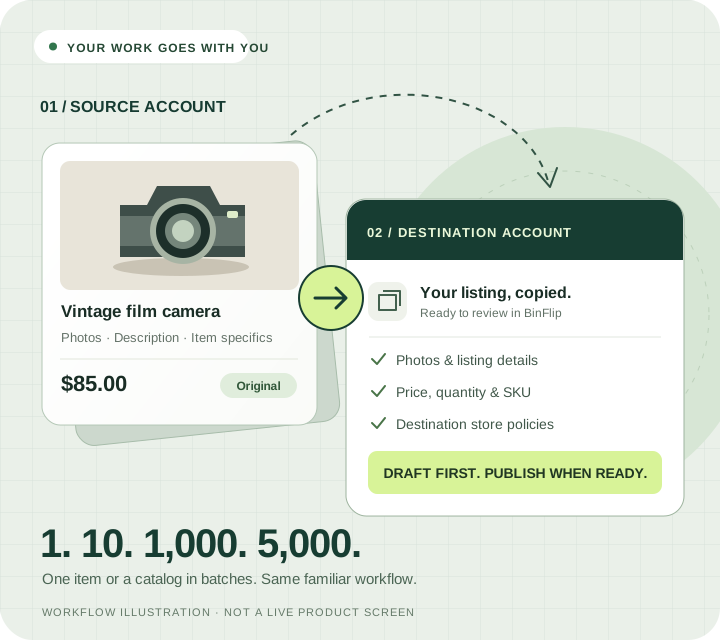
Yes. With BinFlip, you connect the source and destination eBay accounts, sync the source listings, and select the listings to copy. BinFlip creates drafts associated with the destination account. After reviewing them, you can publish selected drafts as new eBay listings.
That distinction matters: you are creating a new listing from existing listing content. You are not transferring the original eBay listing ID or the reputation of an account. Watchers and the original listing’s sales history do not move onto the new listing. Account feedback stays with the account that earned it.
This is especially useful when you want to:
- Open a second store for a specific niche.
- Separate parts, collectibles, clothing, or another category into its own storefront.
- Reorganize inventory across accounts you manage.
- Prepare a small collection for a new store before moving more inventory.
- Work through a catalog migration without recreating every description and photo set by hand.
You choose what belongs in the next store. BinFlip helps with the repeated listing work.
What copies, and what needs a fresh decision?
A useful listing copy needs more than a title. The details determine whether the draft is ready for a buyer and appropriate for the account publishing it.
BinFlip’s copy workflow uses the available information from the source listing:
| Listing information | What happens in BinFlip |
|---|---|
| Title and description | Brought into the draft for review and editing. |
| Photos | Available listing images are carried into the draft. |
| Category | The source category gives the draft its starting category. |
| Condition and condition notes | Available condition details are copied for review. |
| Item specifics | Available specifics are reused so you can check them instead of starting from scratch. |
| Product identifiers | Available identifiers are carried over. |
| Price and quantity | Source values provide the starting point; check both before publishing. |
| SKU | The source SKU is reused when available. BinFlip can generate one when the source has none. |
| Shipping, payment, and return policies | You select policies belonging to the destination account. |
| Original item ID, watchers, and listing sales history | These do not transfer to the new eBay listing. |
Think of the copy as a prepared starting point. If a description contains an old store name, a photo is outdated, or the available quantity has changed, correct the draft before publishing. Copying saves re-entry; your review makes the listing suitable for its next home.
The copy also creates or links the BinFlip inventory record. That helps keep the listing connected to the item you need to store, find, sell, and report on later.
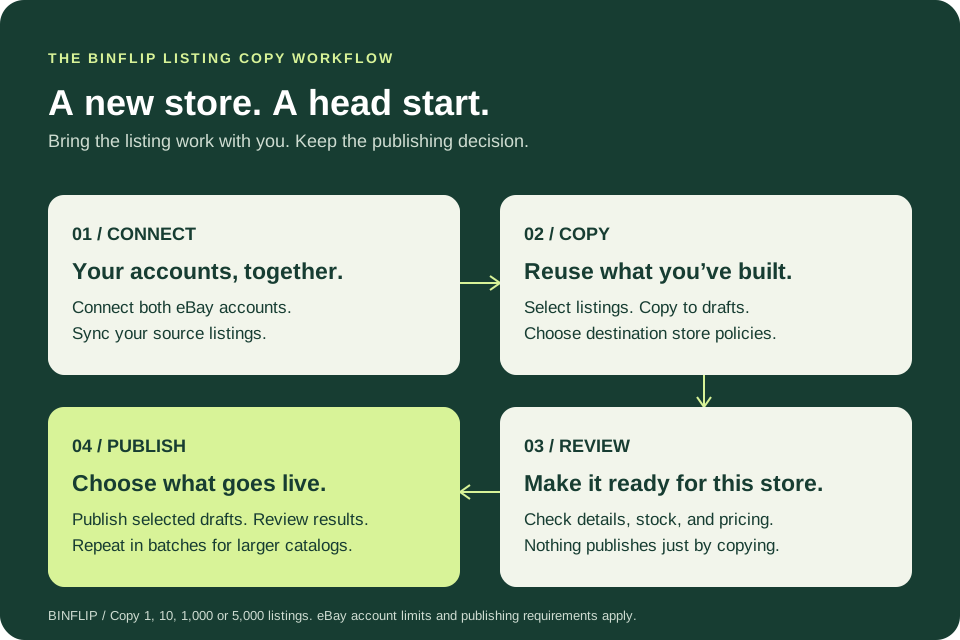
How to copy eBay listings between accounts with BinFlip
1. Connect the source and destination eBay accounts
Start your BinFlip trial and connect the accounts you want to work between. The source account is where the existing listings live. The destination account is where you want the new listings to appear.
Sync the source listings so BinFlip has the listing records to work from. Before creating your first destination draft, make sure the destination account has its shipping, payment, and return policies ready.
For your first copy, choose an item you know well. A familiar listing makes it easier to spot whether the description, photos, specifics, and stock quantity look right.
2. Select listings from one source store
Open eBay Listings in BinFlip. Select the listing or group of listings you want to copy from a single source account, then choose Copy to drafts.
Working from one source store at a time keeps the source clear. For a bigger project, group items that will use similar destination policies. For example, a batch of small collectibles may need different shipping arrangements from a batch of bulky equipment.
3. Choose the destination account and its policies
Choose another connected store as the destination. BinFlip shows its policy options so you can confirm or change the shipping, payment, and return policies before copying. You can also save the selected policies as defaults for future work.
This is a useful place to make the new store’s operating decisions. Is its handling time the same? Does it offer the same shipping services? Are its return terms appropriate for these items?
The destination account needs its own policy selections. A policy associated with one store is not automatically the correct policy for another.
4. Review the copied drafts
After copying, review the drafts before listing them. A practical review includes:
- Confirming the destination account and category.
- Checking that the photos show the correct item and condition.
- Reading the description for old store references or outdated details.
- Reviewing condition notes, item specifics, and product identifiers.
- Checking the asking price and quantity actually available.
- Confirming the SKU and inventory connection.
- Checking shipping, payment, and return policies.
Copying into drafts does not publish on the destination account or end the original listing. You have a chance to prepare the next store before making a live change.
5. Publish selected drafts and review the results
When your drafts are ready, select them and choose List selected. If you are moving inventory between stores, you can choose to end eligible original listings as part of publishing.
Review each result. Some listings can succeed while others need attention. Resolve failed copies or publishing errors before treating a batch as finished or starting the same work again.
If you choose to end originals, BinFlip ends the original before attempting to publish the replacement. When ending fails, the replacement is skipped. If ending succeeds but publishing fails, the original can remain ended while the draft needs a correction. Plan the move with that order in mind.
The publishing workflow creates fixed-price listings. BinFlip does not end active auctions through this process. If your catalog includes auctions or complete multi-variation listings, ask us about your workflow before planning a large migration.
Copy 1, 10, 1,000, or 5,000 listings: a practical plan for each
BinFlip is useful at each of these sizes. The difference is how you organize the project, review the work, and stage publishing. These counts describe the size of your project, not a promise to publish the entire catalog in one request.
One listing: get a useful result first
You do not need a large catalog to benefit. Copying a single detailed listing can spare you the task of re-entering a description, uploading the same photos, and rebuilding its specifics.
Use your first listing to learn the process. Compare the copied draft with the source, confirm the destination policies, and decide when it should go live. You have now tested the workflow on something concrete.
Ten listings: give a new store a focused start
Ten listings can be a useful first collection. Select a related group from one account, prepare the destination drafts, and review them together.
This is a good point to settle the new store’s conventions: how descriptions refer to the business, which policies apply, and how your SKUs connect to inventory. Decisions you make here can guide the next batch.
1,000 listings: organize the move around repeatable batches
At 1,000 listings, the repeated work becomes the project. Group similar inventory, confirm the destination policies for each group, and work through manageable batches.
Keep a simple record of what has been copied, reviewed, published, and left for correction. Those are different states. A draft that exists is not necessarily a listing that is live.
Before moving another group, review the previous batch’s results and spot-check the destination listings. BinFlip handles the copying workflow while you keep the migration organized around your catalog.
5,000 listings: prove the workflow, then expand
A 5,000-listing move should begin with a representative batch. Include the kinds of items you actually sell, rather than choosing only the simplest example.
Confirm the destination account’s capacity, the listing formats you need, and the policies you plan to use. Then work through the catalog in stages. Processing time depends on the listing details, eBay responses, and the work needed to fix any errors; there is no blanket completion-time promise.
Also account for the total active listings across your connected accounts. During a move, the active count depends on what remains live in the source store and what has been published in the destination store. The number you intend to copy and the number of active listings you need to manage are not always the same.
For help planning a large move, email [email protected] with your approximate listing count, listing types, and the accounts you want to work between.
Copying a listing and moving inventory are different decisions
Copying is preparation. Moving inventory also involves deciding where it will be available for sale.
If you have one physical item, creating a draft does not create another unit of stock. Plan which account will offer it and when the original should end. Creating drafts does not reserve inventory or guarantee protection against overselling.
Publishing duplicate live listings is also subject to eBay’s rules. eBay’s duplicate listings policy applies across accounts. Use the copy workflow to prepare legitimate new listings and store moves, with the appropriate originals ended where needed.
The destination account’s selling limits still apply. A BinFlip plan does not increase an eBay account’s allowance. eBay also has a multiple accounts policy; additional accounts cannot be used to evade restrictions.
Set up the destination properly, review a small batch, and expand from a process you have already checked.
What does it cost to copy listings with BinFlip?
Start with a free 14-day trial. No credit card is required. The trial gives you full app access so you can try the copy workflow using your own listings.
For ongoing bulk copying between eBay stores, choose the $49.95 USD/month High-Volume Stores plan, which supports up to 10,000 active eBay listings across connected accounts. This is a monthly BinFlip subscription, not a price per copied listing.
BinFlip also offers $19.95/month and $29.95/month plans for smaller active listing volumes. For this bulk cross-account workflow, plan around the $49.95/month tier. Compare current plans when deciding what fits your operation, and contact us if you expect more than 10,000 active listings. eBay’s own selling fees remain separate.
The trial is your chance to make the value concrete. Copy a representative batch, check how much repeated work the drafts remove, and see whether the wider inventory and sales workflow earns a place in your business.
Why keep BinFlip after the listings are copied?
A store migration eventually ends. The work of operating the stores continues.
You still need to know where an item is stored, what it cost, which SKU identifies it, whether it sold, and what profit remains after the selling costs. BinFlip connects the listing workflow to those daily tasks.
- Shared inventory: Keep the item record at the center of your multiple-store operation.
- SKUs and storage: Connect listings to the inventory you need to find when orders arrive.
- Sales and costs: Bring synced eBay sales together with cost-of-goods information.
- Profit visibility: Use eBay profit tracking to understand the result of a sale.
- Listing work: Continue preparing listing drafts, managing policies, and using eligible listing automation workflows.
The reason to keep paying is the value of the whole workflow: less repeated listing preparation and a clearer connection between what you list, what you own, and what you earn.
Start with one listing. Build from there.
You do not need to solve the entire migration before trying the tool. Choose a familiar listing. Connect both accounts. Copy it into a draft. Check the result for yourself.
If you have 10 listings to prepare, use that first success to shape the batch. If you have 1,000 or 5,000, use it to build a process you can repeat.
Your existing listing work is a head start. BinFlip helps you put it to work in your next store.
See the workflow and start your free 14-day trial. For help with your catalog, reach out to [email protected].